Case laws
Find a judgment by party, citation, or court. Filters help you narrow a large collection before opening the full case.
Search by case name, citation, court...
Browse case laws Login / Register
See where to start, what each reading tool does, and how access works. Follow the written steps even if the screens on your device look a little different.
Each library has its own search and reading controls. Pick the kind of source you need first.
Find a judgment by party, citation, or court. Filters help you narrow a large collection before opening the full case.
Read legal analysis in a familiar article layout. Search a topic, open the article, then use its reading and sharing tools.
Browse learning resources by type or topic. Open a book or note to read its pages and discover page-matched sources.
Pick a document category and format. Preview a template, fill its fields, or edit its wording where your access permits.
Follow the numbered gold outlines in these real interface captures. The matching steps explain each control even when it moves on a smaller screen.
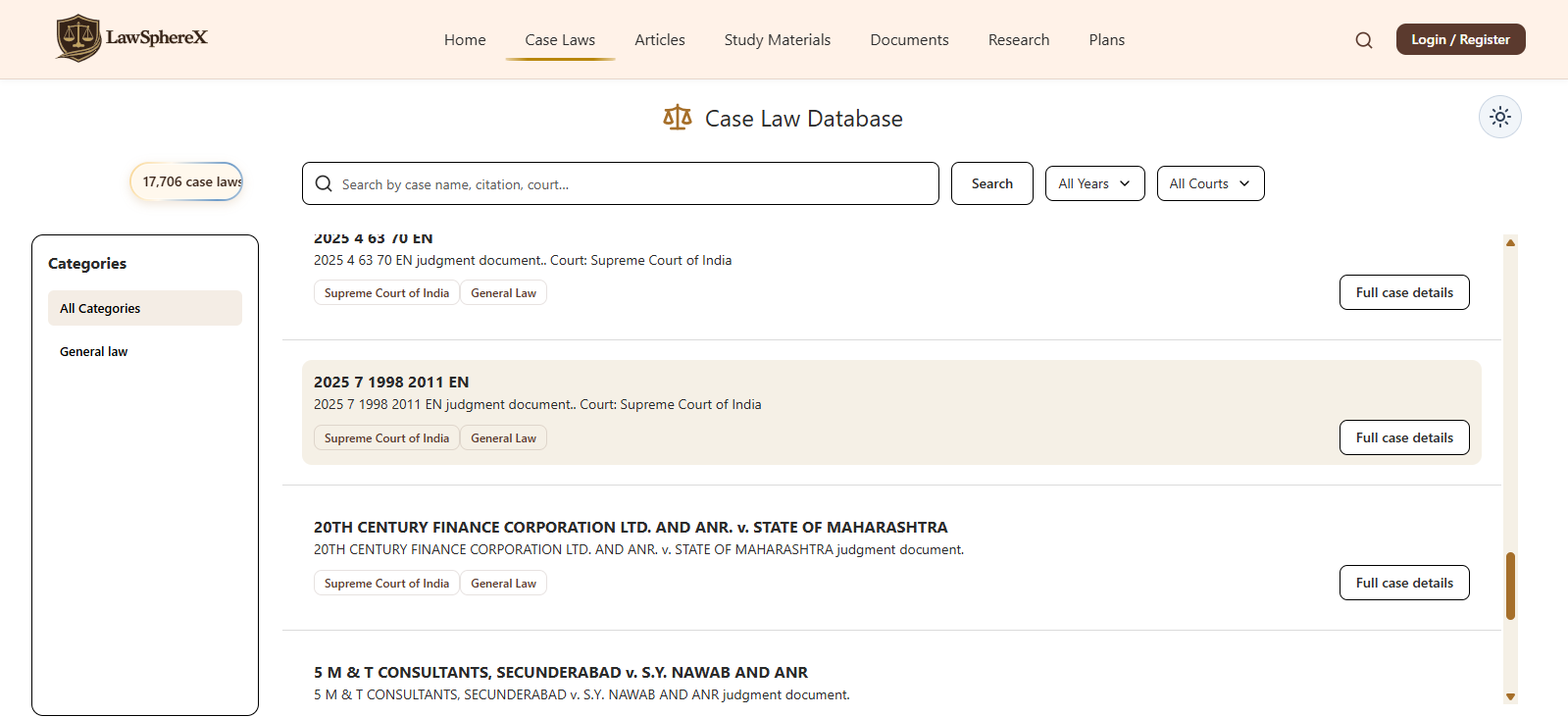
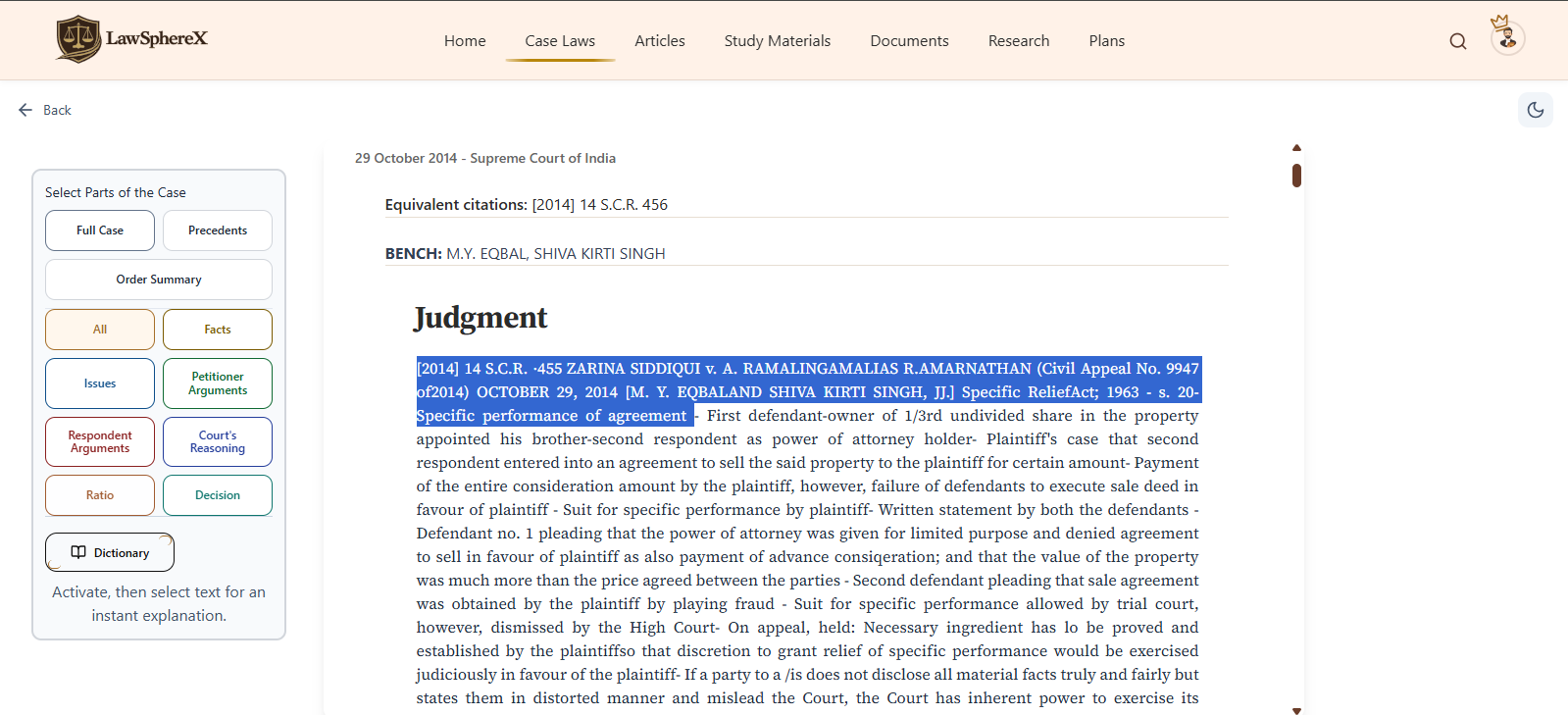
These captures show an earlier interface state. Counts and individual case records have changed; use the live listing for current results. Extracted sections depend on what can be reliably identified in each source.
These steps cover the listing page, the detail page, and what each tool changes. Features may require sign-in or a plan allowance.
Open a study material, then move to a different page in its viewer. The page label on the resource panels updates to match the visible page. These panels are designed to support the source, so check the book itself before relying on a summary or external link.
Turn the page in the book or notes. The resource cards beside it now look for material matched to page 12.
1 Page 12A short explanation or notes for the page currently in view.
ReadCards show a source title, website, and matching page. They open the source in a new tab.
Open sourceRelated video cards can include a thumbnail, title, and channel or source name.
WatchRelevant past questions or papers, when verified material is available.
PractiseControl map: 1 is the reader’s current page; 2 is Page Summary; 3 is Online Sources By Page; 4 is YouTube Sources; 5 is Previous Year Question Papers. This is an illustration, not a screenshot of a specific book. Real pages can have different sources or no verified match. When locked, follow the on-screen plan link for current access terms.
In an article or case reader, activate Dictionary and select a short word or phrase. The result panel appears near your selection. You can close it and keep reading without losing your place.
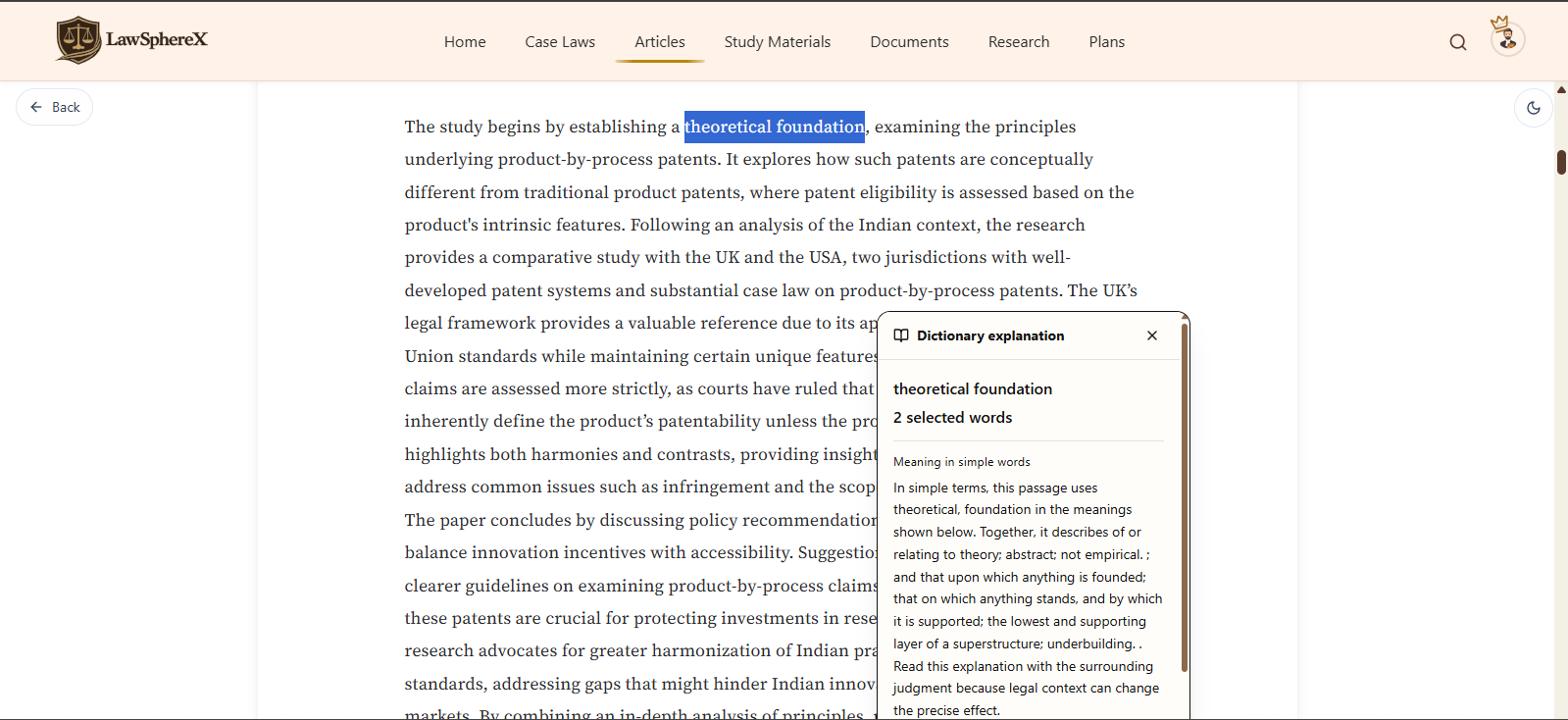
For a legal question, read the surrounding article or judgment and verify important terms against the source law. Selecting a shorter phrase usually gives a clearer result.
The Documents page groups formats by category. A category opens a list where you can compare or search formats; selecting one opens its detail page with a description, source, and available controls. Some direct PDF documents open in a reader rather than an editable template.
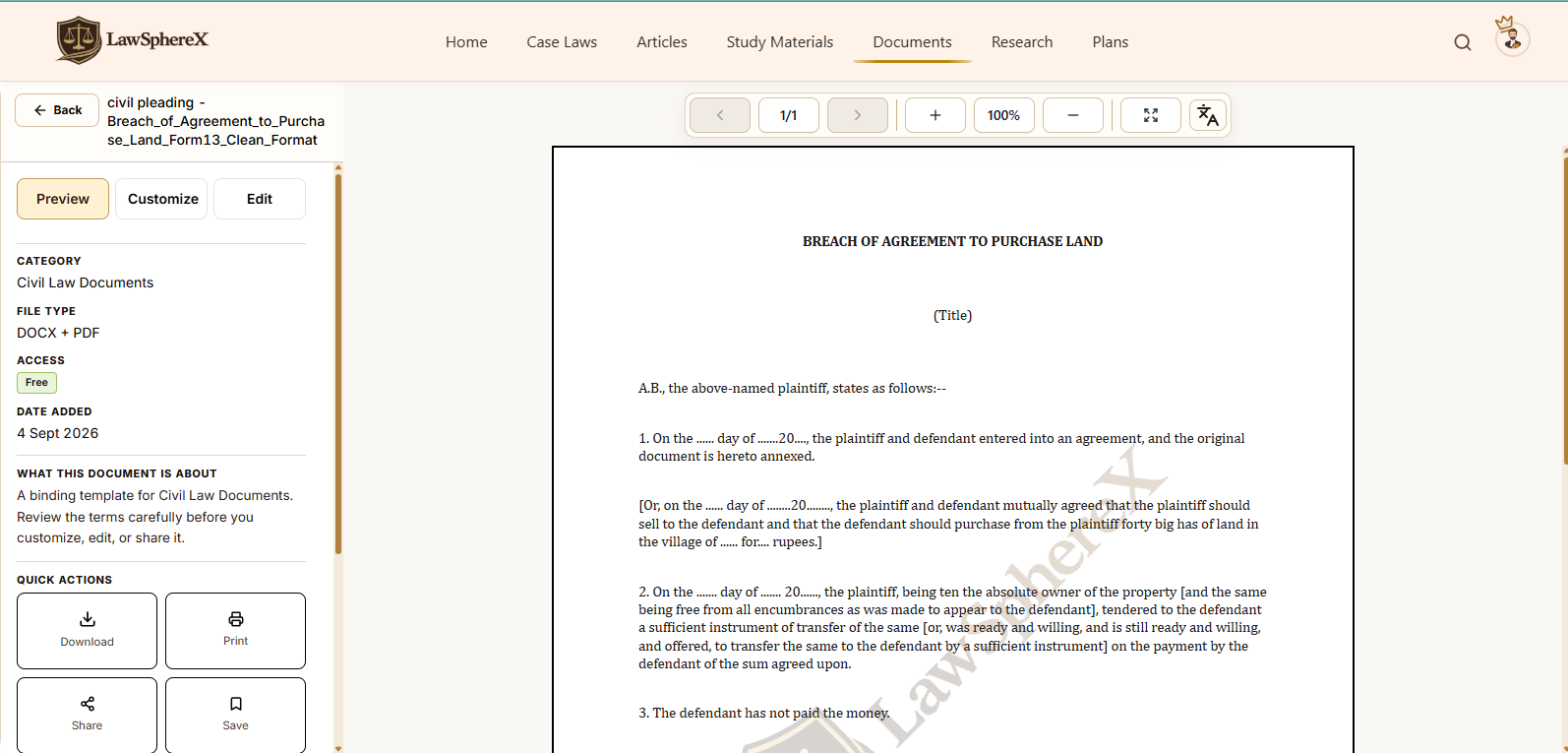
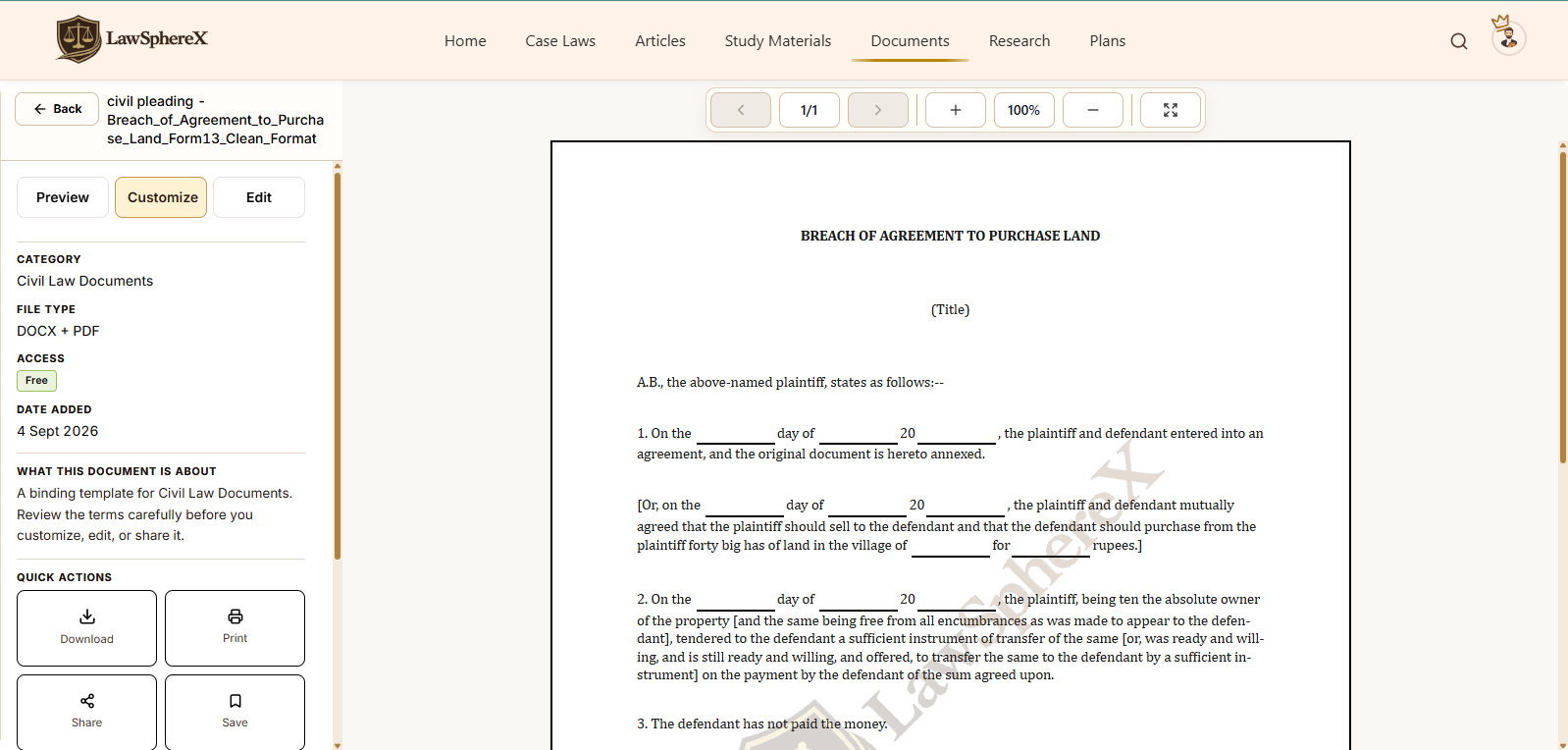
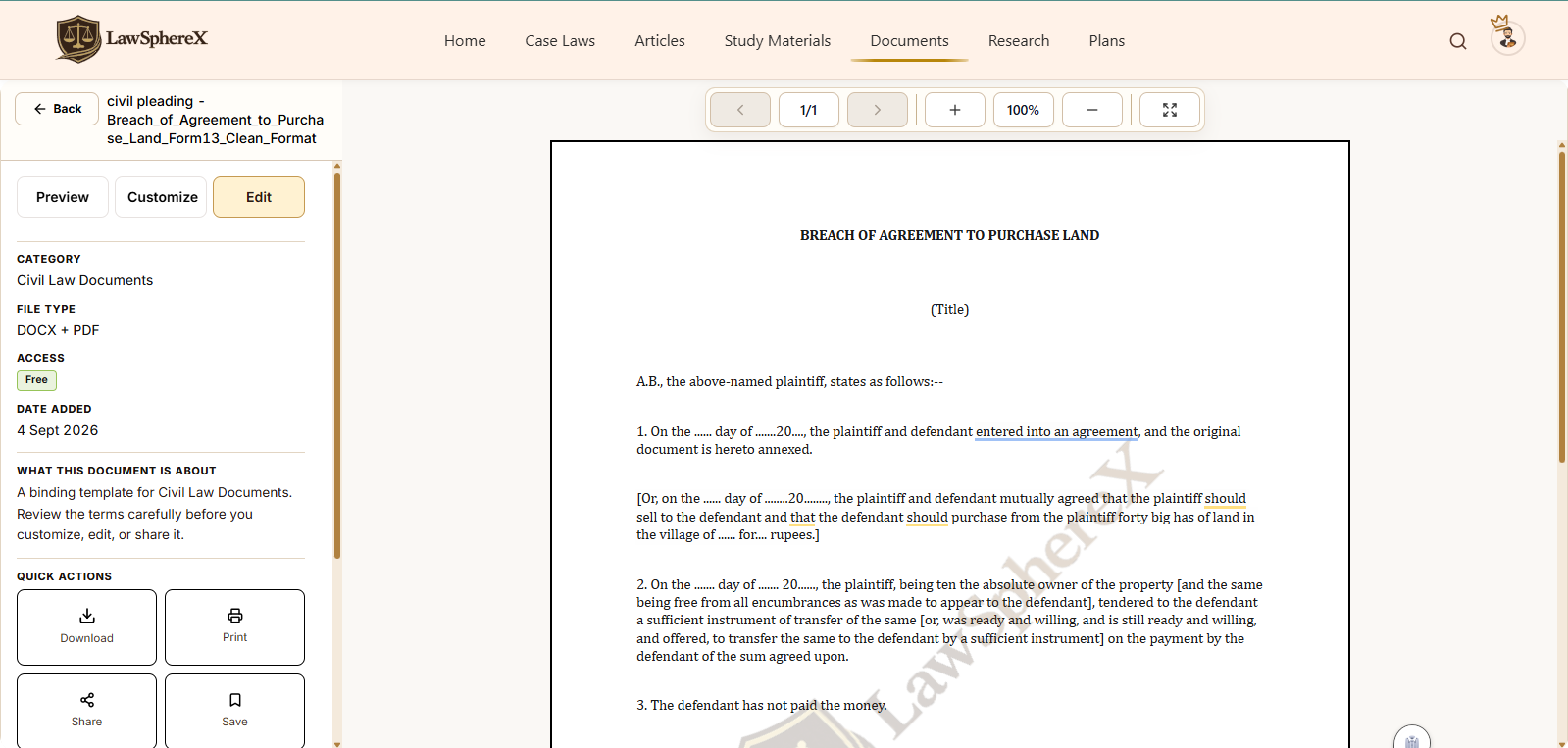
These are real desktop captures of a DOCX-backed template. On a phone, controls move into a smaller layout; PDF-only files may offer Preview without editable wording. The live document controls and access prompt take priority over an older capture.
Read the document before changing it. Use previous/next page, zoom, or fullscreen where shown. Preview helps you decide whether this format fits your situation.
Fill the template’s placeholders and signature fields. Turn through the pages to check every inserted value and the resulting layout before output.
Change the document wording directly when a fillable field is not enough. Full Edit needs an editable DOCX source; the page explains when that source is unavailable.
The action opens output choices. A preview PDF or print can include a watermark; a clean copy needs Basic or Pro, while a customized or edited copy needs Pro. Review the final draft first.
Open Download to choose a preview PDF using your plan's monthly allowance, or a clean draft with Basic or Pro. If you customized or edited the draft, the finished version requires Pro. A missing PDF source can disable the action.
Open Print to choose a watermarked preview or a clean copy. The same source and plan rules apply to customized or edited output. Check the page preview before sending it to a printer.
Save adds the document to your signed-in collection when your plan allows it. Share opens your device's share sheet where available, or lets you copy a link to the document; it does not send your private edits to someone else.
The language control is in Preview where supported. Translation helps with reading, but names, legal terms and clauses should be checked against the original document before use.
Get PDF prepares a readable LawSphereX case PDF. Court Copy retrieves the uploaded source copy when available. Print it sends the current case view to print. These actions can have separate plan allowances; check the prompt beside the action. For official use, rely on the court-issued copy and verify it against the court record.
Use the header search for published legal content today. The Research page explains the separate hub being developed for choices after 10th, 12th, or graduation, including fields, colleges, exams, careers, salaries, jobs, and internships.
See the Research planSign in to use Save where it appears on articles, cases, or study material. Saved-item limits depend on your plan; your account shows what you can access.
View accessArticle, case, study, and document readers offer a language control where supported. Choose a language from that reader's toolbar; return to the original text to check exact legal wording. A machine translation can be incomplete or inaccurate.
Open articlesUse this guide to learn the controls, and the FAQ for common account, reading, and subscription questions. Contact details are available in the site footer.
Read the FAQUse this directory when you know what you want to do but not which page to open. Individual case, article, study, and document detail URLs appear after you select an item from their lists.
Privacy explains how account and usage data are handled. Terms explains the conditions for using the platform and its legal content. Cancellation and refunds explains the payment and cancellation rules. Editorial policy covers sourcing and corrections, while the advertising and copyright pages explain sponsorship and content-rights concerns.
Checkout, payment callback, and success screens appear only during a payment journey. A success URL alone cannot activate a plan. Admin-only pages are separate from this visitor guide.
Browse and read first. The Plans page gives current prices, allowances, and terms before you decide to pay.
Explore public case laws, articles, study materials, and document previews. Signed-in free accounts have a limited dictionary allowance.
Monthly allowances for case PDFs, prints, court copies, saved items, dictionary lookups, study downloads, and document previews.
Higher allowances, page-matched study resources, customized or edited document downloads, and an ad-free experience.
Your paid plan is determined by the completed checkout and verified payment, never by visiting a success-page address.
Review live prices, features, and limits. Select Subscribe on Basic or Pro.
Sign in if asked and confirm the selected plan on the checkout page.
Complete payment. LawSphereX verifies the transaction before activating access.
Check the Subscription page for your plan, status, and expiry. Manage renewal there if offered.
If payment is pending or fails, use your account and checkout status rather than assuming access is active. The Plans and FAQ pages explain your options.